 FinLens
See where your money goes, across all your banks and cards
FinLens files every debit and credit from your bank and card statements and alert e-mails into a category by fixed rules, then points out what changed: a category that rose, bills due soon, your savings rate.
- AES-256 encryption
- No bank passwords, no payments
- Two-step sign-in
- Available in India only
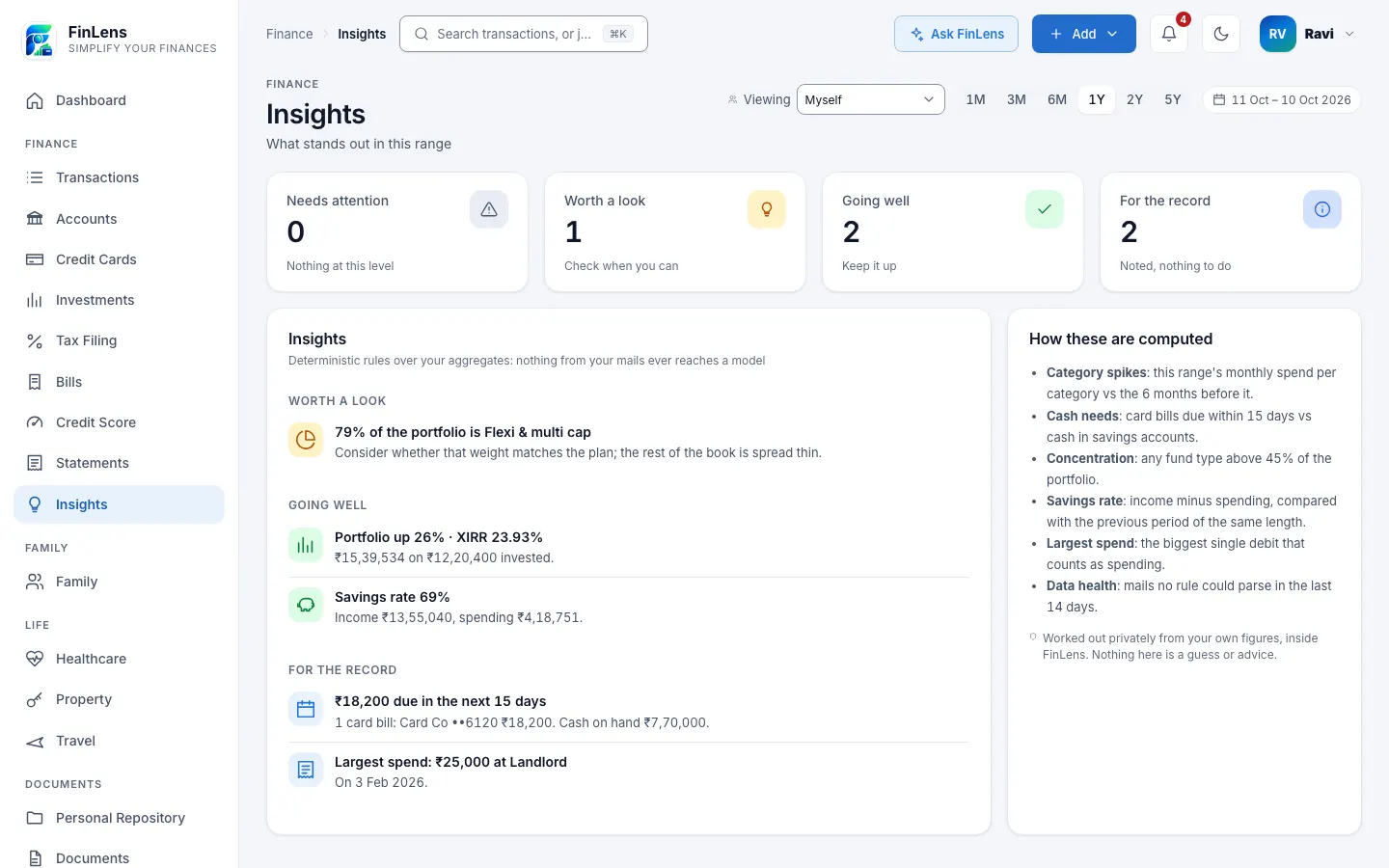
Expense tracking and insights in FinLens
Two pages work together. Transactions lists every debit and credit from your alerts and statements in one dated table, with Total spent, Total received, Net cash flow and Top category above it. You can filter by bank, by one account or card, by category, channel or source, by amount, or search the merchant and reference.
Insights reads those figures for the date range you pick and sorts what stands out into four groups: Needs attention, Worth a look, Going well and For the record. The Dashboard adds Spending by category and Money in and out for the same range.
Why expense tracking usually breaks down
Your spending is split across UPI, debit cards, credit cards and net banking, at more than one bank. Each bank labels its rows in its own codes, the same purchase shows up once as an alert and again on the statement, and moving money between your own accounts or paying a card bill looks like spending when it is not. Typing it all into a spreadsheet lasts a month or two.
FinLens reads the rows for you, files them by fixed rules, keeps each spend counted once, and leaves you to correct only what it got wrong.
Who an expense tracker like this suits
- Anyone who wants to know where the month's money went without keeping a spreadsheet.
- People whose spending runs across several banks and cards.
- Anyone who wants a monthly check of savings rate and upcoming dues, as in our monthly money review.
- People who prefer rules they can read to predictions they cannot check.
What the spending insights tell you
Category spikes
A category whose monthly spend is at least ₹3,000 and 40% above its average for the six months before is flagged; one of that size that fell by 30% or more is listed as going well.
Cash for upcoming bills
Card bills due in the next 15 days are added up and compared with the cash in your savings accounts. A shortfall is marked as needing attention, as is any bill past its due date.
Savings rate
Income minus spending, as a share of income, compared with the previous period of the same length.
Largest spend and portfolio weight
The biggest single spend of ₹25,000 or more in the range is noted, and so is any fund type that makes up 45% or more of your portfolio.
Each spend counted once
When a statement arrives, the alerts it covers step aside, so a purchase is not counted twice. Transfers between your own accounts and card bill payments are kept out of spending.
Data health
If mails could not be read in the last 14 days, Insights says so, so a missing transaction does not go unnoticed.
How spending insights are worked out
Bring in your transactions
Upload bank and card statements, or connect Gmail so alert e-mails are read on the hourly check from 06:00 to 23:00 IST.
FinLens files each transaction
Fixed rules choose one of 24 categories, such as Food & dining, Groceries, Rent, EMI, Bill payment or Transfer, from what the narration says and from a list of known merchants.
Correct what it got wrong
Open a transaction and choose Change category. Tick Apply to every transaction whose merchant contains to fix the same merchant everywhere, or add a rule in Settings under Rules; your rules win over the built-in ones.
Pick a range
Choose 1M, 3M, 6M, 1Y, 2Y or 5Y at the top of the page, or set your own dates.
Read Insights
Tap a group's tile to see only that level. Most insights link to the transactions, bills or holdings behind them, and How these are computed lists the rules.
What you add to your expense tracking
- Bank and card statements, or a connected Gmail account for alert e-mails.
- Your corrections: a category changed on a transaction, or a rule that maps a merchant to a category or a display name.
- Optionally, a note on any transaction, such as what a payment was for.
What the expense tracker reads and works out
- For every transaction: date, amount, debit or credit, the merchant text, the channel, the bank reference and, for a card, its last 4 digits where known.
- Spending by category, income, net cash flow and the top category for the range you choose.
- Insights from fixed rules over these totals and your open bills. The text of your e-mails is never sent to an AI model, with one exception: when no rule opens a locked attachment, the mail's one sentence about its password may be read, masked, to find the rule.
- An export of the filtered table as a CSV file, up to 5,000 rows at a time.
Good to know about spending insights
- FinLens works from what your statements and alerts show, so cash you spend after withdrawing it appears once, as a cash withdrawal.
- Categories come from fixed rules and can be wrong; a quick correction with a merchant rule fixes the rest.
- Insights describe your figures; they are not predictions or financial advice, and nothing here promises savings.
- Spending is measured against your own history; FinLens does not set per-category budgets or spending limits.
- A spike is measured against your own previous six months, so it needs some history before it appears.
Questions about spending insights in FinLens
How does FinLens categorise my transactions?
By fixed rules: what the narration states (interest, charges, cash, refunds), a payment to yourself, a list of known merchants, and keywords. Your own merchant rules come first. No AI model chooses a category.
Will a purchase be counted twice if I get an alert and a statement?
No. Once a statement is imported, that bank's mail alerts for the dates it covers are set aside and the statement's lines count instead.
Does paying my credit card bill count as spending?
No. A card bill payment is filed as Bill payment and a transfer between your own accounts as Transfer; neither counts as spending or income.
Can I export my transactions?
Yes. Export on the Transactions page downloads the rows you have filtered as a CSV file, up to 5,000 at a time.
Can I ask a question instead of reading the pages?
Yes. Ask FinLens answers questions such as how much you spent on food last month, from the same figures.
How do I see all my expenses from every bank and card on one dashboard?
Bring the statements in and the dashboard builds itself: every debit and credit from each bank and card is filed into a category by fixed rules, so one page shows spending by category, the month against the last six, the merchants that took most, bills due soon and your savings rate, across every account and card you hold.
Related features
Bank accounts
Every account's balance and transactions, read from your bank statements and alerts, on one page.
Learn moreCredit cards
Each card's outstanding, limit used, minimum due and due date, from statements and issuer e-mails.
Learn moreAsk FinLens
Plain-English questions about your spending, cards, loans and investments, answered from your data.
Learn moreBills & reminders
Card and Jio bills with due dates, and a daily WhatsApp reminder from 7 days before each due date.
Learn moreBring your whole financial picture into FinLens
FinLens is open by invitation. Ask for one with your name, mobile number and e-mail address, and a person reviews it; if you already have an account, sign in.
At present the Pro plan is free for your first year: claim it on Plan & Billing once you are in.
Or write to support@finlens.in.